Class Portal User Guide Open Class Portal

Quick start

Everything you need to get signed in and set up. It takes about five minutes. Do the first three parts before your first day; the rest you can pick up as you go.

9:41
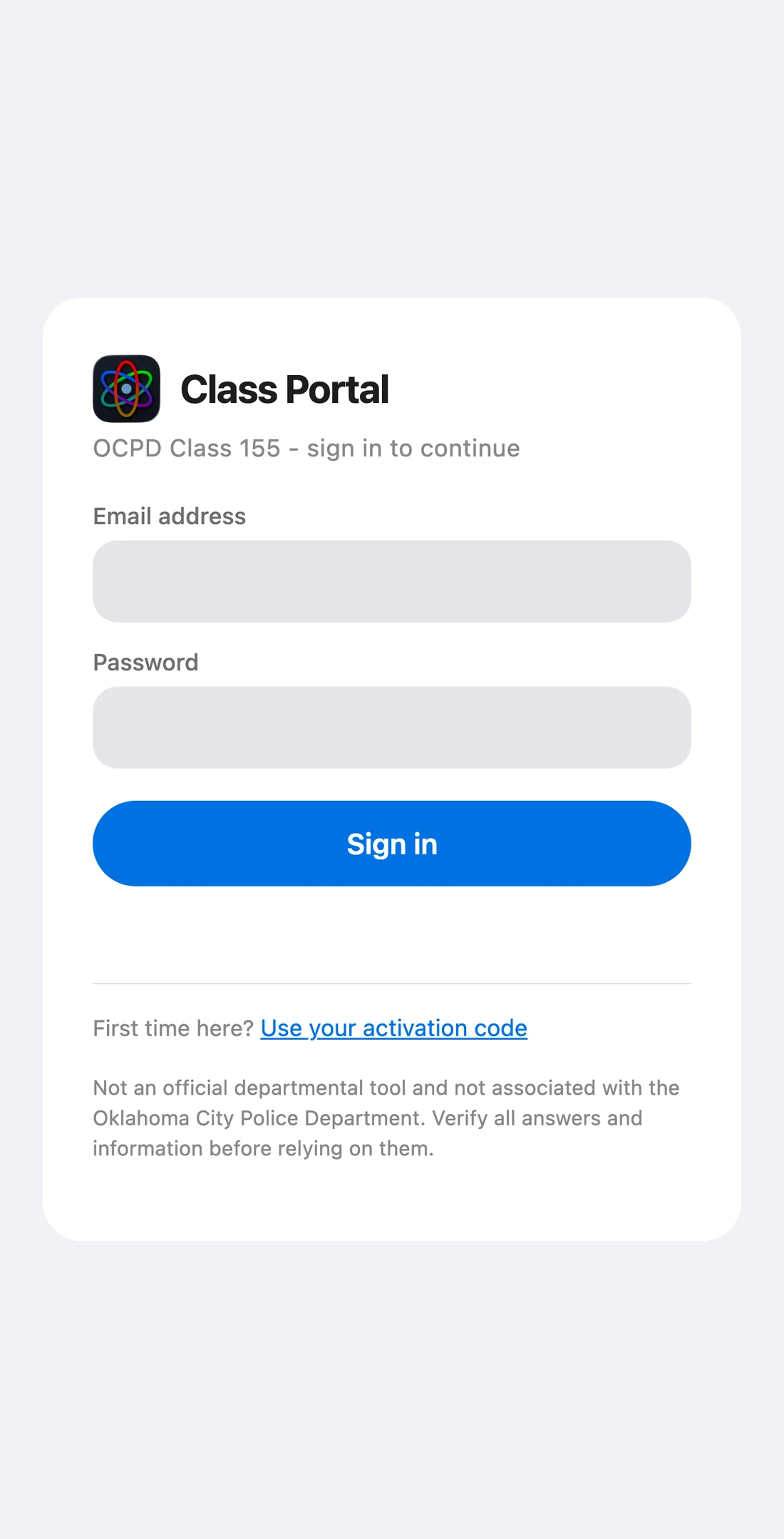
The Class Portal sign-in screen

Before you begin

You need three things:

  • Your activation code. It looks like 155-XXXX-XXXX and works once.
  • The email address and phone number on the roster. They have to match exactly, so use the ones you handed in, not a different one.
  • An iPhone or Android phone with Safari or Chrome. Class Portal is a web app; there is nothing to download from an app store.

Note: Class Portal also works on a computer, but set it up on your phone first. Notifications only reach the phone.
9:41
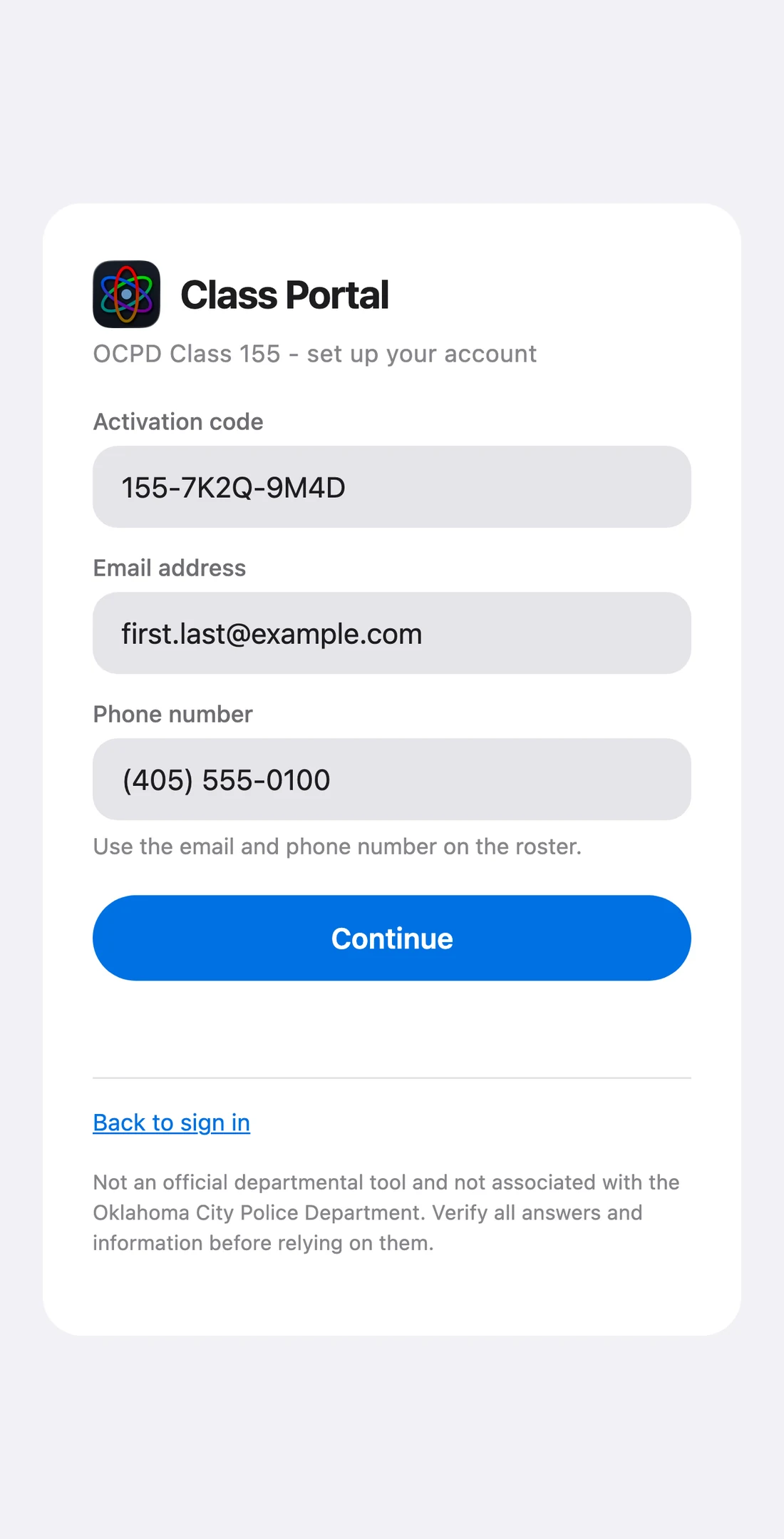
The activation screen with the code, email and phone number filled in

Activate your account

  1. Open classportal.sospublicsafety.com in Safari (iPhone) or Chrome (Android).
  2. Tap Use your activation code, under the Sign in button.
  3. Enter your activation code, email address and phone number, then tap Continue.
  4. Choose a password. At least 10 characters; a short phrase you will remember beats a complicated word. Type it again, then tap Create account.

You are signed in. Next time, sign in with your email address and password.

If the code is refused: check the email address and phone number first; they must be the ones on the roster. If it still will not go through, contact an admin.

Class Portalclassportal.sospublicsafety.com
Copy
Add to Reading List
Add Bookmark
Add to Favorites
Add to Home Screen
Find on Page

Do not skip this

Add Class Portal to your Home Screen

From the Home Screen the app opens full screen with its own icon, stays signed in, and, on iPhone, it is the only way notifications can reach you. Safari in a tab cannot deliver them.

iPhone

  1. With Class Portal open in Safari, tap Share at the bottom of the screen.
  2. Scroll down the list and tap Add to Home Screen.
  3. Tap Add. Class Portal appears on your Home Screen.
  4. From now on, open it from there.

Android

  1. With Class Portal open in Chrome, tap the menu in the top-right corner.
  2. Tap Add to Home screen (on some phones, Install app), then Install.
9:41
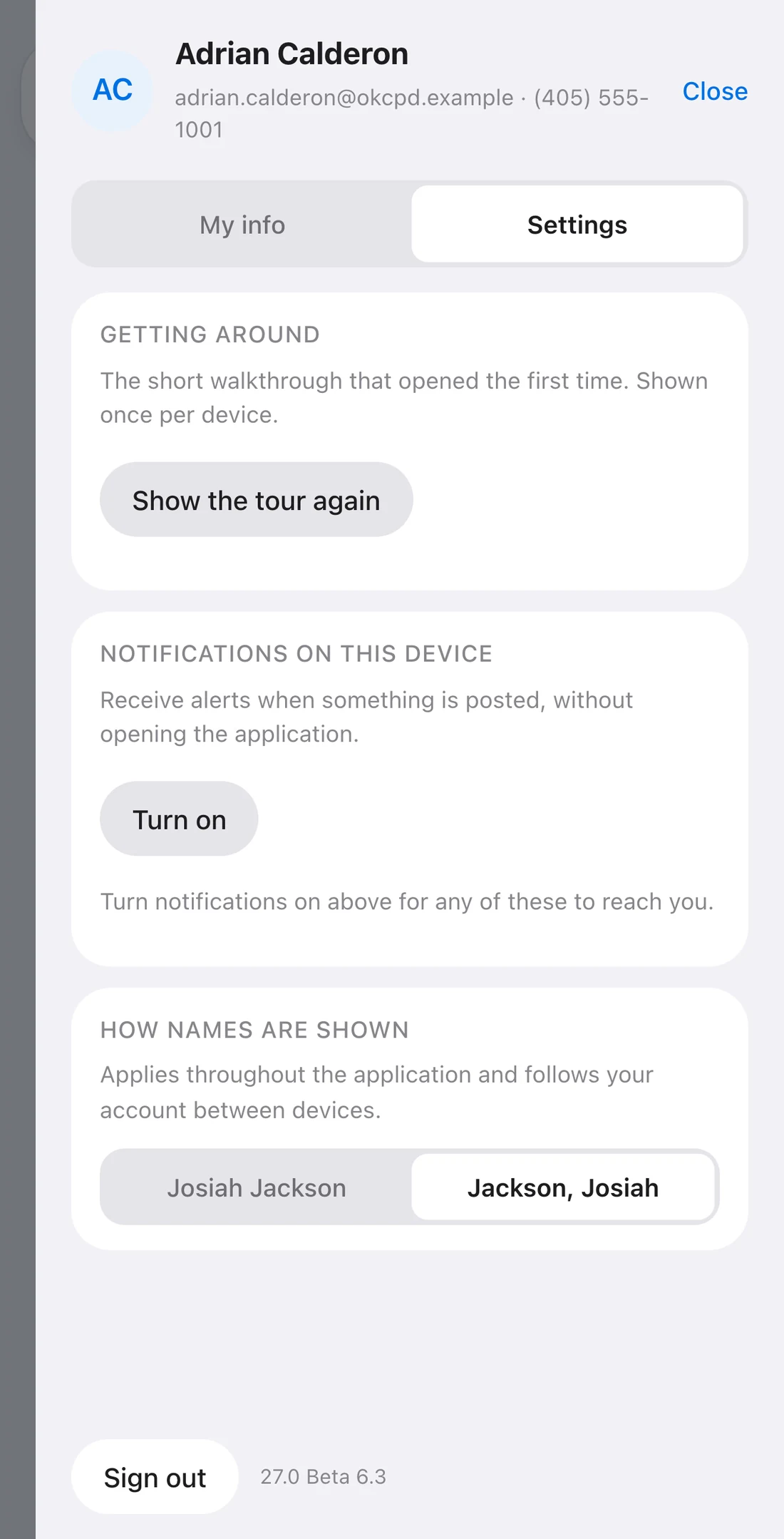
Settings in the account panel, showing Notifications on this device with a Turn on button

Do not skip this either

Turn on notifications

Announcements and assignments reach your phone the moment they are posted, without opening the app. This is how the class commander reaches everyone at once.

  1. Open Class Portal from your Home Screen, not from Safari.
  2. Tap your initials in the top-right corner.
  3. Tap Settings.
  4. Under Notifications on this device, tap Turn on.
  5. When your phone asks, tap Allow.

Below the switch you can choose which other kinds of notification you want. Announcements and assignments are always on.

If the box says "Add Class Portal to your Home Screen first": you opened it in Safari. Close it, open the icon on your Home Screen, and try again. Notifications are per phone, so repeat this on any other phone you use.

9:41
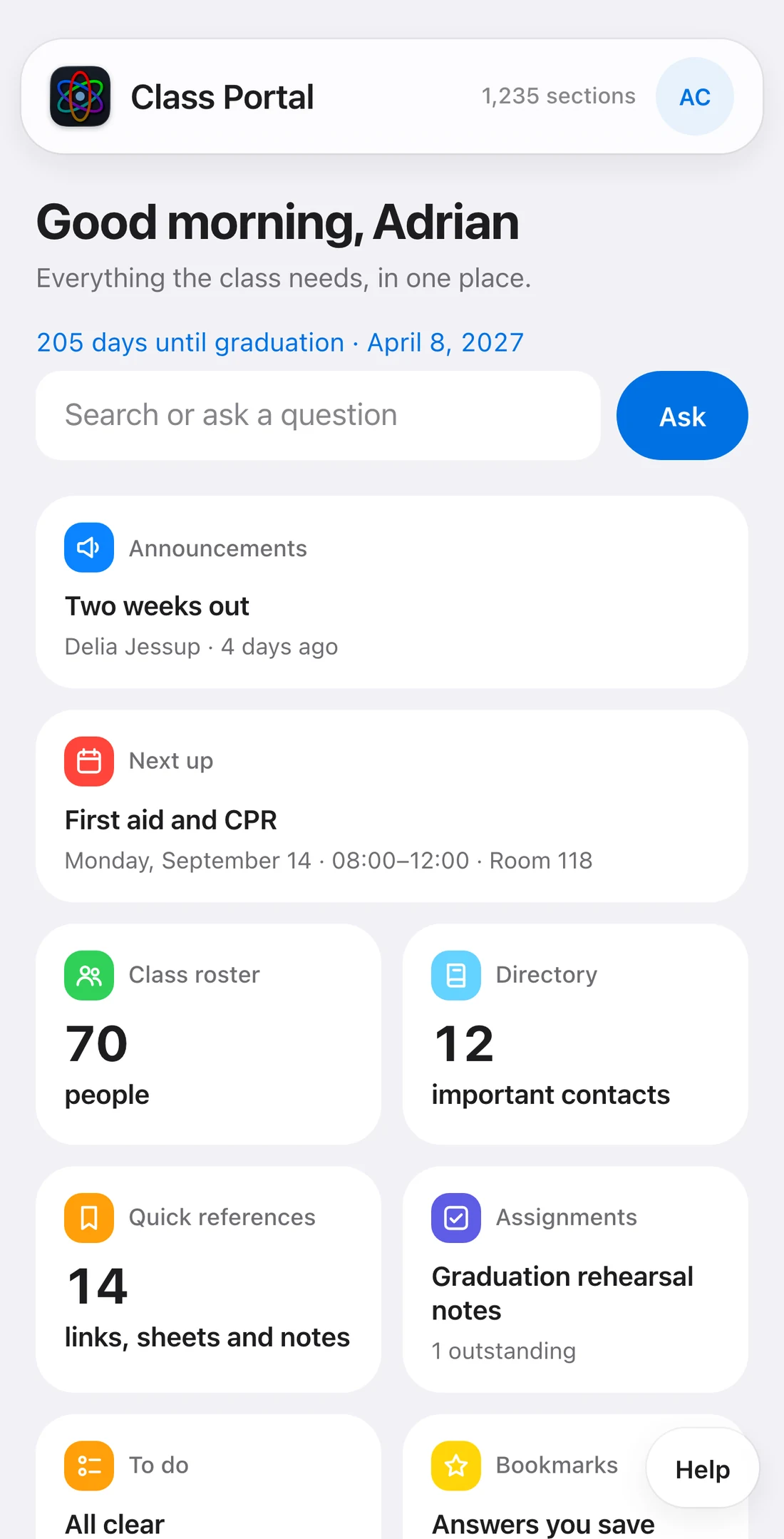
The Class Portal home screen

Know your way around

Everything starts on the home screen.

  • Search. Type a question, a phrase or a section number. Matching sections appear as you type, with the page they came from. Tap Ask to turn them into a written answer.
  • Announcements. The class board. Comments, @mentions from the roster, photos. A blue dot means something new.
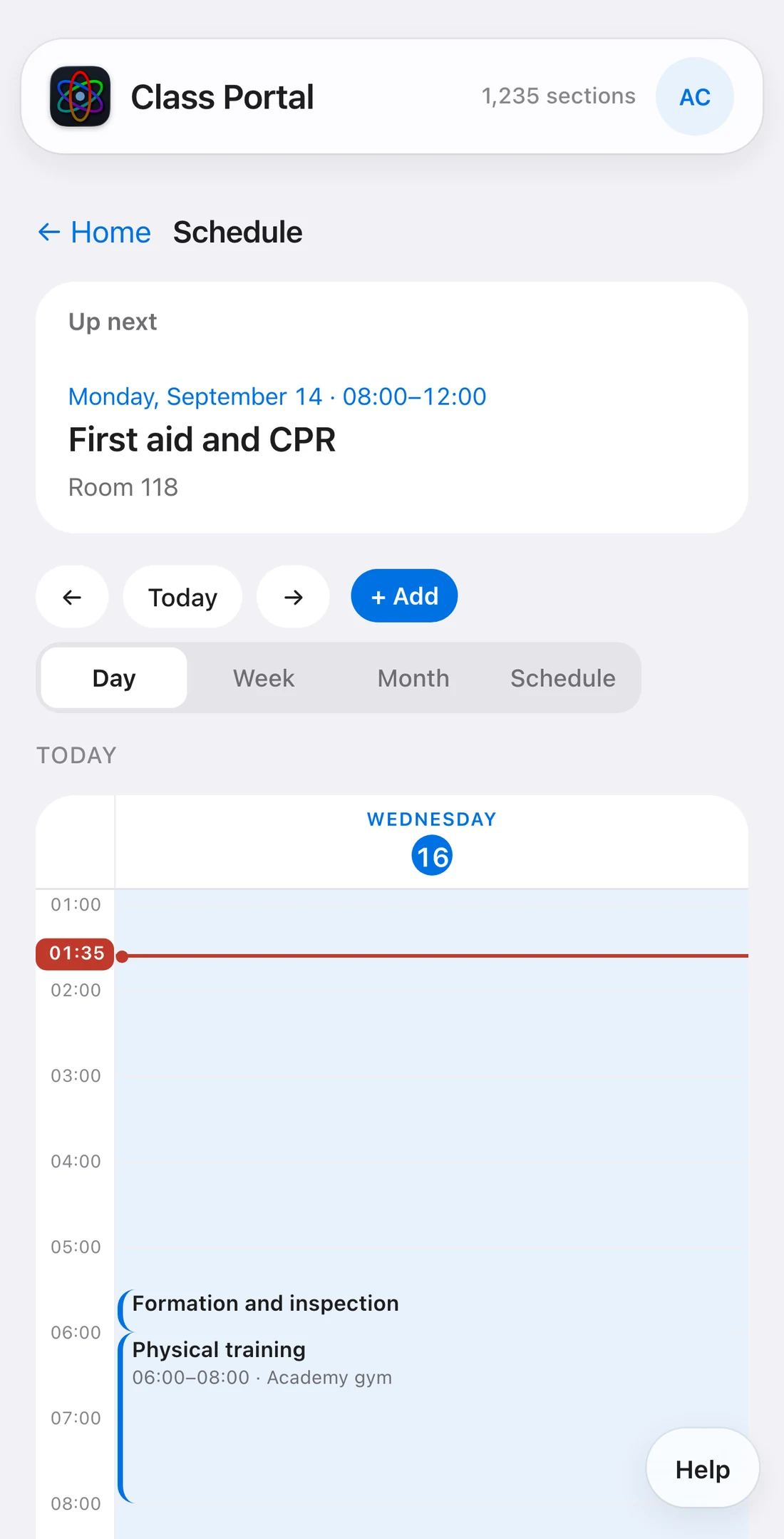
  • Next up and Calendar. Every hour of the academy on a grid, by day, week or month.
  • Class roster and Directory. Everyone in the class, and everyone you will need outside it. Tap a number to call it.
  • Quick references, Assignments, To do, Bookmarks. Links and files the class keeps reaching for, what is due, your own list, and answers you saved.
  • Beat Book and Form Builder. Flash cards for codes, signals and streets; the academy's forms filled in on your phone and printed onto the original PDF.
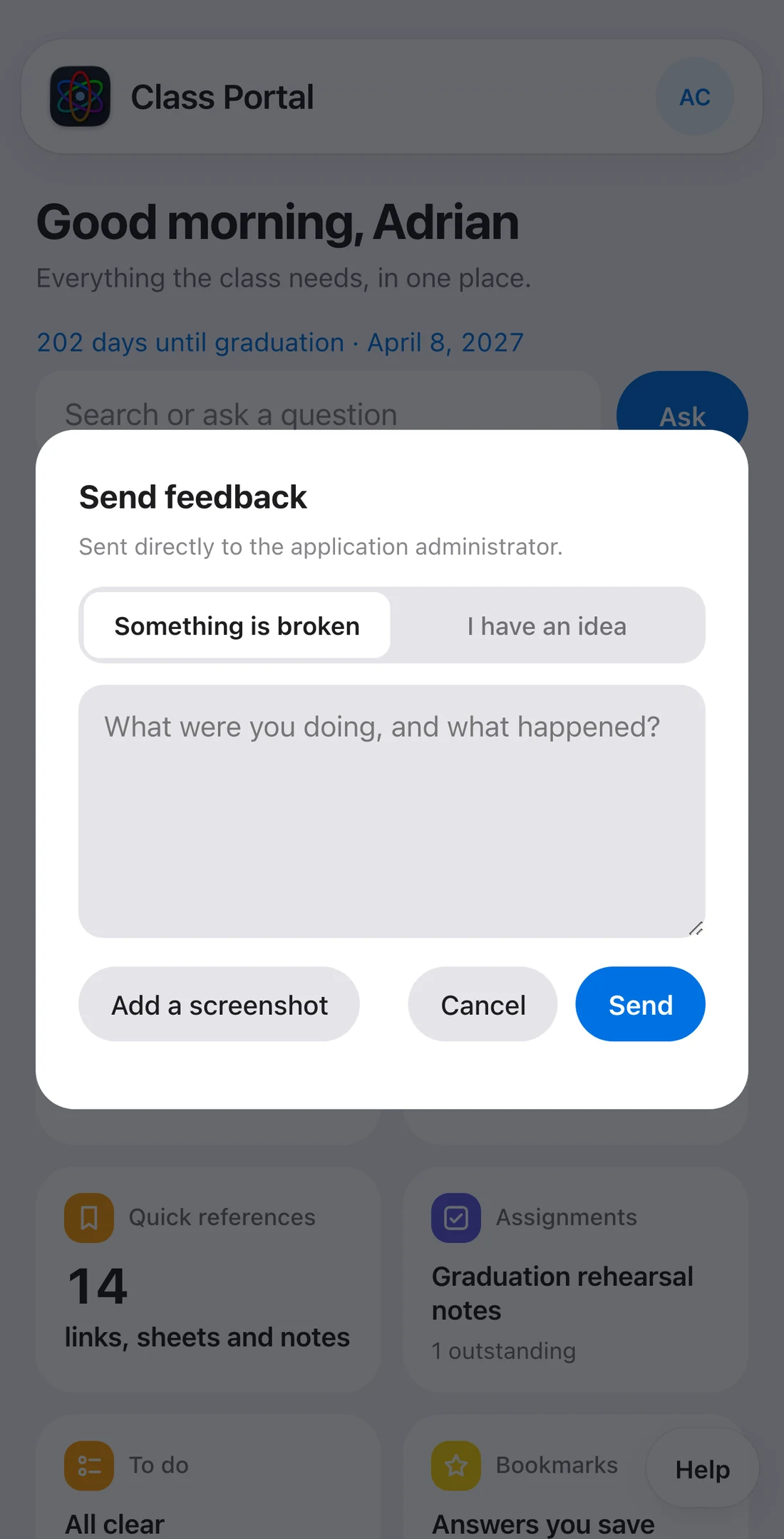
  • Help. Bottom-right, on every screen. A wrong answer, a broken page, a question: it sends a note with a screenshot to the people who fix things.
9:41
The calendar in day view

Put the schedule in your phone's calendar

  1. Tap Next up on the home screen to open the calendar.
  2. Scroll to the bottom and tap Add to your preferred calendar.
  3. On iPhone, tap Subscribe and confirm. On other phones, copy the link and add it to your calendar app as a subscription.

The academy's schedule then sits beside everything else in your life and updates itself when it changes. The link is private to you; do not forward it.

Good habits

  • Check Announcements every morning, even with notifications on.
  • Your card on the roster is yours: tap your initials, then My info, to choose what the class can see.
  • Verify anything important against the source. Every answer shows the section it came from; the page is one tap away.
  • Sign in on a second device with the same email address and password. Turn notifications on there too.